
Place Your Header Here
Place Your Typewriting quote, labels, etc here
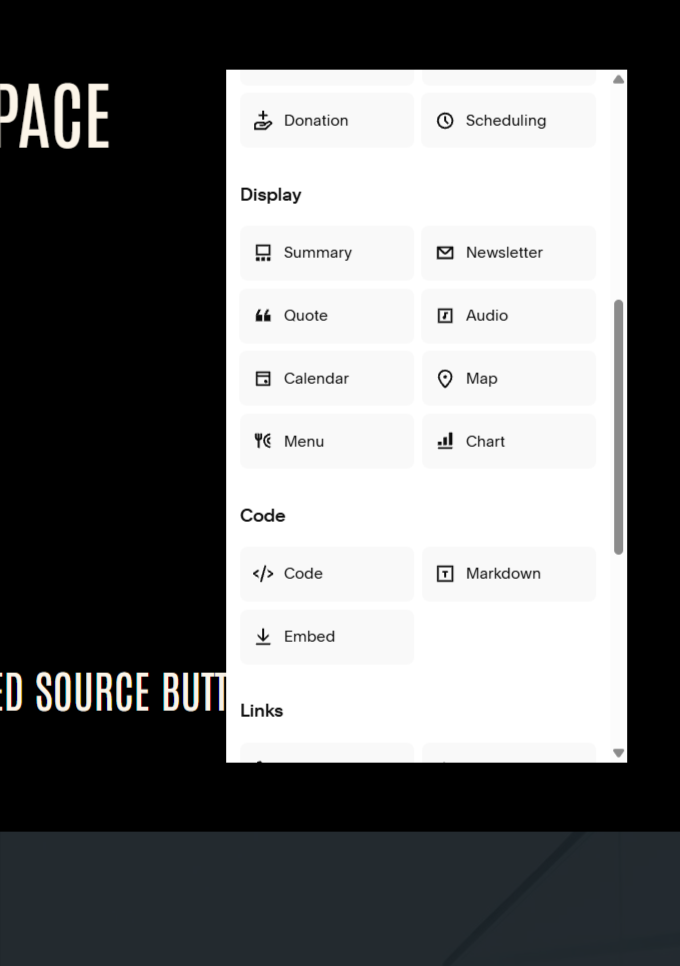
Step 1: Add a Code Block Element
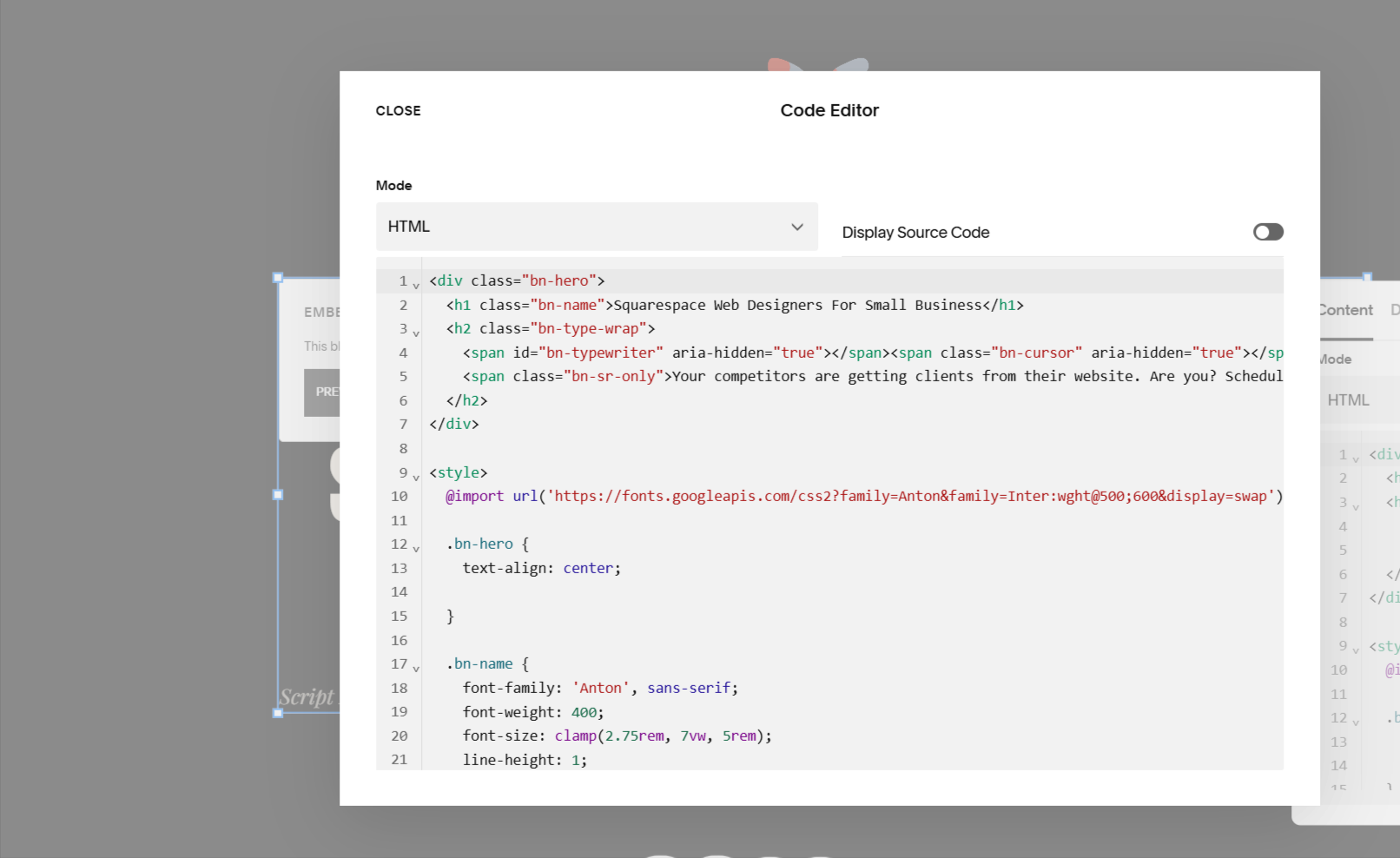
In Squarespace, add a Code Block to the section where you want the typewriter effect to appear. Paste in the code below, then swap out the header text, the screen-reader label, and the word list to fit your site.
<div class="bn-hero">
<h1 class="bn-name">Place Your Header Here</h1>
<h2 class="bn-type-wrap">
<span id="bn-typewriter" aria-hidden="true"></span><span class="bn-cursor" aria-hidden="true"></span>
<span class="bn-sr-only">Place Your Typewriting quote, labels, etc here</span>
</h2>
</div>
<style>
@import url('https://fonts.googleapis.com/css2?family=Anton&family=Inter:wght@500;600&display=swap');
.bn-hero {
text-align: center;
}
.bn-name {
font-family: 'Anton', sans-serif;
font-weight: 400;
font-size: clamp(2.75rem, 7vw, 5rem);
line-height: 1;
letter-spacing: 0.01em;
color: #FCF5E9;
margin: 0 0 14px;
}
.bn-hero h2.bn-type-wrap {
font-family: 'Inter', sans-serif !important;
font-weight: 600 !important;
font-size: clamp(2rem, 2.6vw, 1.6rem) !important;
line-height: 1.4 !important;
letter-spacing: 0.02em !important;
color: #035AAB !important;
margin: 0 !important;
min-height: 1.4em;
}
.bn-cursor {
display: inline-block;
width: 2px;
height: 0.95em;
margin-left: 3px;
background: #8D52D0;
vertical-align: -0.15em;
animation: bn-blink 0.85s step-end infinite;
}
@media (prefers-reduced-motion: reduce) {
.bn-cursor {
animation: none;
opacity: 1;
}
}
@keyframes bn-blink {
0%, 100% { opacity: 1; }
50% { opacity: 0; }
}
.bn-sr-only {
position: absolute;
width: 1px;
height: 1px;
padding: 0;
margin: -1px;
overflow: hidden;
clip: rect(0, 0, 0, 0);
white-space: nowrap;
border: 0;
}
</style>
<script>
(function () {
var words = ["Add Words", "Be Creative", “Tell A Story”];
var wordIndex = 0;
var charIndex = 0;
var isDeleting = false;
var el = document.getElementById('bn-typewriter');
function type() {
var currentWord = words[wordIndex];
var delay = isDeleting ? 40 : 90;
if (isDeleting) {
charIndex--;
} else {
charIndex++;
}
el.textContent = currentWord.substring(0, charIndex);
if (!isDeleting && charIndex === currentWord.length) {
isDeleting = true;
delay = 1500;
} else if (isDeleting && charIndex === 0) {
isDeleting = false;
wordIndex = (wordIndex + 1) % words.length;
delay = 300;
}
setTimeout(type, delay);
}
type();
})();
</script>
Step 2. Adjusting The Code In Squarespace
Customizing the Code
Customizing code in Squarespace can feel tricky if you don't know where to look. Here's a quick breakdown of what to adjust, whether it's the header text, the typewriter words, or the colors, so you can make this effect your own.
Changing Text writing for your typewriter effect
<div class="bn-hero">
<h1 class="bn-name">Place Your Header Here</h1>
<h2 class="bn-type-wrap">
<span id="bn-typewriter" aria-hidden="true"></span><span class="bn-cursor" aria-hidden="true"></span>
<span class="bn-sr-only">Place Your Typewriting quote, labels, etc here</span>
</h2>
</div>
<script>
(function () {
var words = ["Add Words", "Be Creative", “Tell A Story”];
var wordIndex = 0;
var charIndex = 0;
var isDeleting = false;
var el = document.getElementById('bn-typewriter');
Changing header Above the Typewriter effect
.bn-name {
font-family: 'Anton', sans-serif;
font-weight: 400;
font-size: clamp(2.75rem, 7vw, 5rem);
line-height: 1;
letter-spacing: 0.01em;
color: #FCF5E9;
margin: 0 0 14px;
}
Changing the typewriter effects text color
.bn-hero h2.bn-type-wrap {
font-family: 'Inter', sans-serif !important;
font-weight: 600 !important;
font-size: clamp(2rem, 2.6vw, 1.6rem) !important;
line-height: 1.4 !important;
letter-spacing: 0.02em !important;
color: #035AAB !important;
margin: 0 !important;
min-height: 1.4em;
}
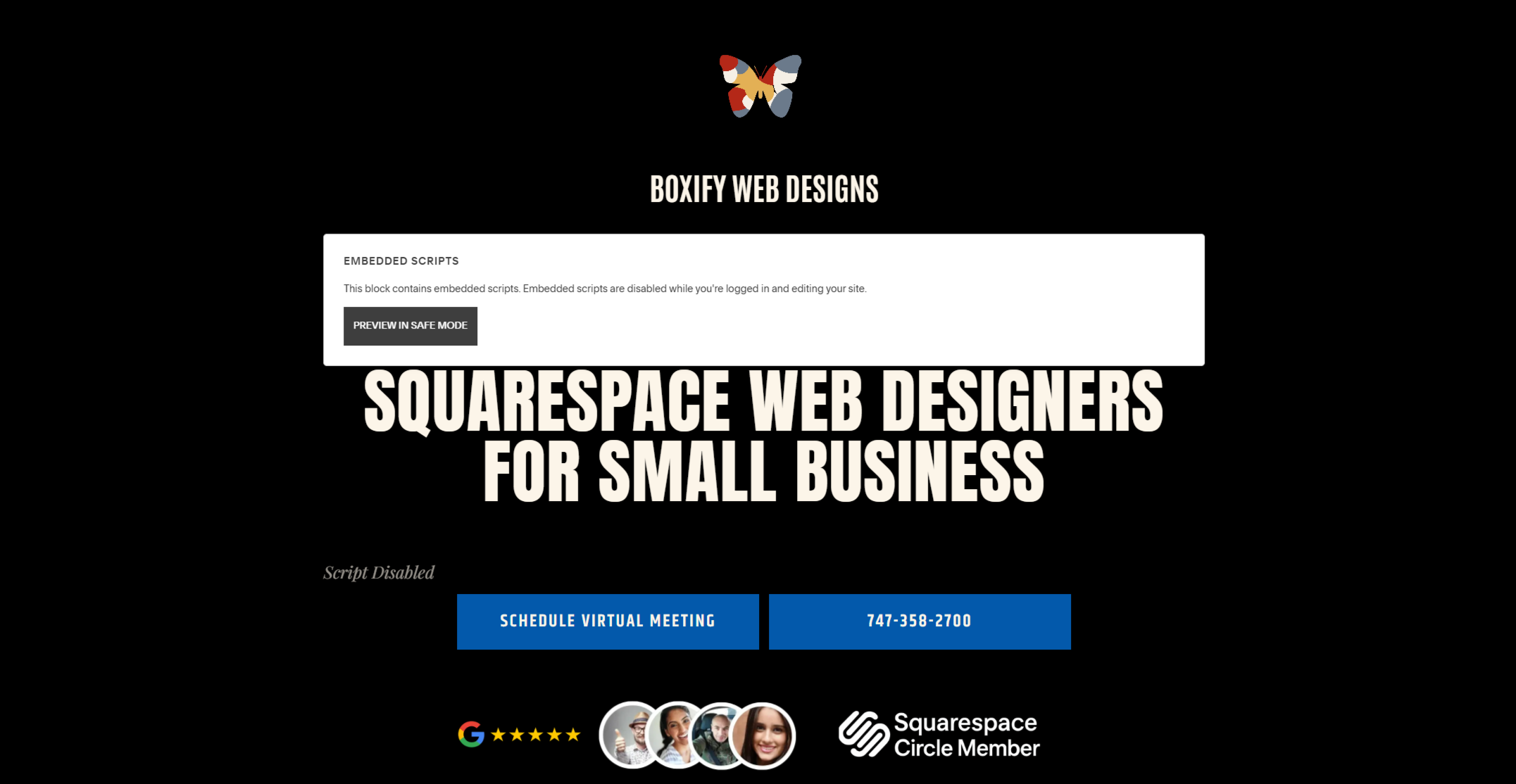
Step 3. Adjust your placement
Take a few minutes and perfect the code block placement in your Squarespace website. It can get tricky, but will work. Be sure to check mobile and allow enough spacing for the typewriter to not overlap anything.