
Add Google’s Preferred Source Button to a Squarespace Website
Google recently introduced a new Preferred Sources button that website owners and publishers can add directly to their websites.
The idea is simple: make it easier for your readers to tell Google that your website is one of their preferred sources.
When someone adds your website as a preferred source, Google can give your content more visibility in certain search experiences, including Top Stories. Google also says preferred sources can be highlighted with a “Preferred” badge in AI Overviews and AI Mode.
For Squarespace website owners, adding the button is surprisingly easy.
You do not need to build a custom button, install a plugin, or create anything complicated.
In this guide, we will show you exactly how to add Google's Preferred Source button to a Squarespace website.
What Is Google’s Preferred Source Button?
The Preferred Source button gives your website visitors an easy way to add your website to their preferred sources on Google.
Instead of asking readers to go into Google's settings and find your website themselves, they can simply click the button on your website and follow the prompts.
Google describes this as an interactive button that lets readers add your site as a preferred source and then return to the page they were viewing.
This can be especially useful for:
News websites
Publishers
Blogs
Local publications
Industry websites
Websites that regularly publish original content
Google's Preferred Sources feature is available globally for Top Stories, although the site itself must be eligible to appear in Google's source preferences tool. Google currently says that only domain-level and subdomain-level sites are eligible, meaning a standalone subdirectory such as example.com/blog is not treated as its own preferred source.
Why Add a Preferred Source Button to Your Website?
The biggest advantage is convenience.
Your visitors may already enjoy reading your content, but they may not know that Google allows them to select websites they trust as preferred sources.
The button puts that option directly in front of them.
Once a reader selects your website as a preferred source, Google says content from preferred sources can be shown for relevant searches in Top Stories. Preferred sources may also receive a Preferred badge in AI Overviews and AI Mode.
That does not mean adding the button guarantees higher Google rankings.
Think of it more as giving your audience another way to tell Google:
“I want to see this website more often.”
For websites that publish regularly, that can be a useful addition to your content strategy.
How to Add the Google Preferred Source Button to Squarespace
The great thing about Google's standard implementation is that it only requires two pieces of code.
The first piece loads Google's Preferred Sources feature.
The second tells Google where you want the button to appear.
Let's walk through it step by step.
Step 1: Add Google's Preferred Sources Code to Squarespace
First, log into your Squarespace website.
From your Squarespace dashboard, go to:
Settings → Advanced → Code Injection
Look for the Footer section.
Paste this code into the Footer Code Injection area:
<script async src="https://news.google.com/swg/js/v1/publisher.js"></script>Google's documentation recommends loading this script in the site's <head> when possible. For Squarespace, putting it into Code Injection is a practical way to add the script across your website.
You only need to add this script once.
You do not need to repeat it every time you add a Preferred Source button to another page.
Once you have added the code, save your changes.
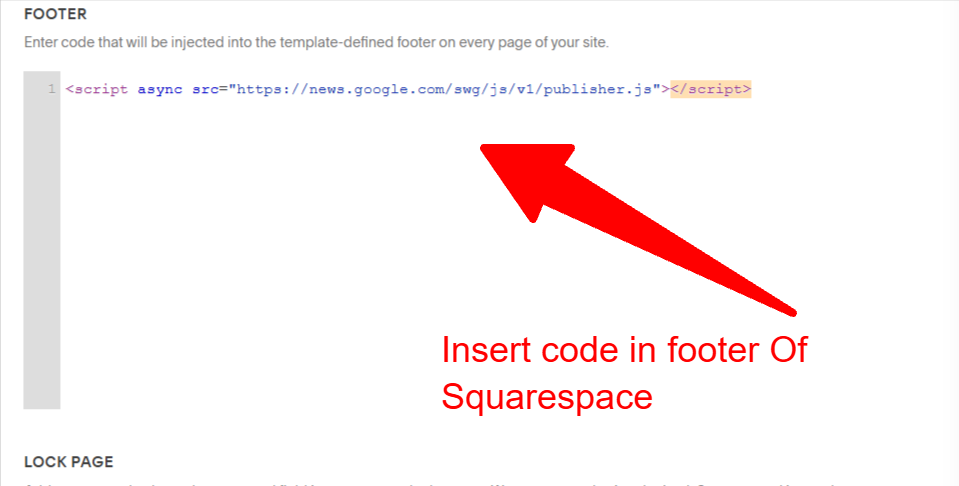
Insert Google preferred source async to the footer of your Squarespace website. This is a javascript code for publishers.
Step 2: Decide Where You Want the Button
Now go to the page where you want your Preferred Source button to appear.
You could place it near the top of a blog post, near the bottom of an article, alongside your author information, or in another location that makes sense for your visitors.
For a blog or publication, placing it somewhere near your content or article information is often a logical choice.
The goal is to put the button somewhere readers are likely to notice it without making it feel intrusive.
Step 3: Add a Code Block to Your Squarespace Page
Open the page in Squarespace and click Edit.
Navigate to the area where you want the button.
Then add a Code Block.
You do not need to create a normal Squarespace button.
The Code Block is what allows Google's Preferred Source button to appear.
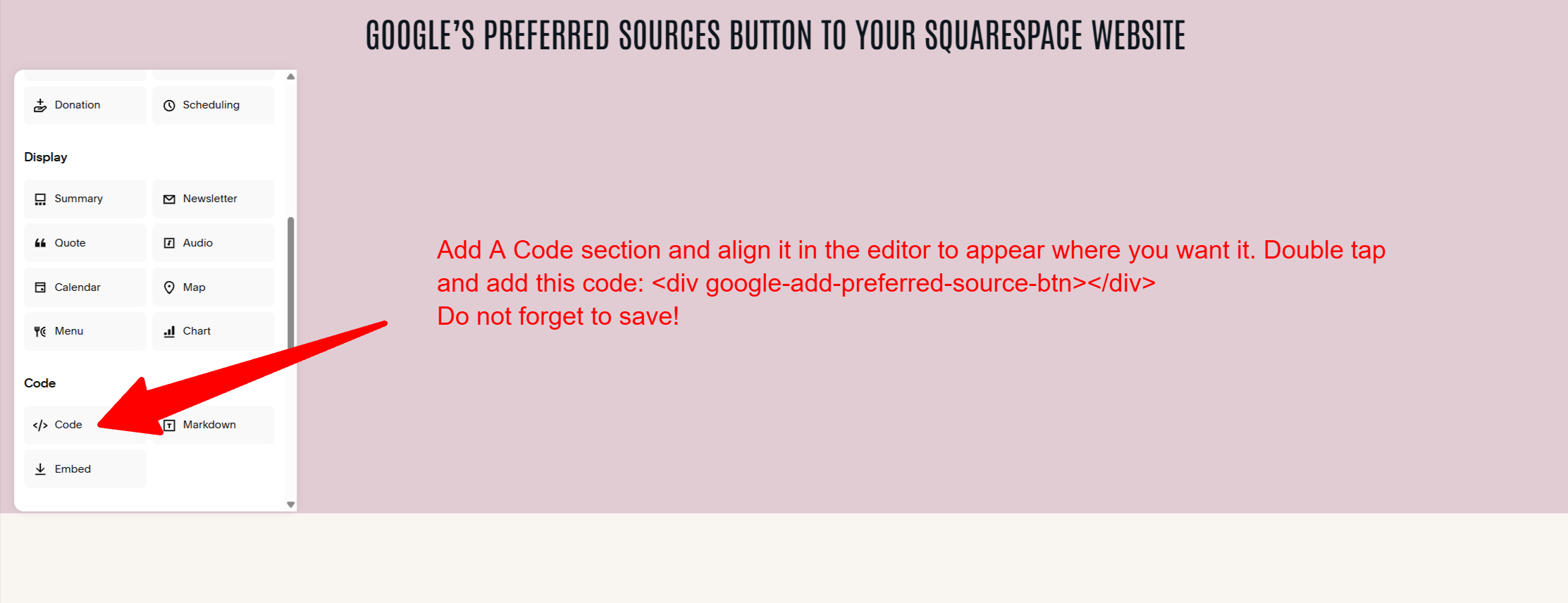
Adding the google preferred source button to your page. The code element is what you need in Squarespace.
Step 4: Add the Preferred Source Button Code
For the standard light version, paste this into your Code Block:
<div google-add-preferred-source-btn></div>That's it.
You do not need to enter your website address.
You do not need to tell Google which domain to use.
Google's library automatically handles the button once it detects this element on the page.
Want a Dark Version?
If your website has a dark background, you may want the button to use Google's dark theme.
Use this version instead:
<div google-add-preferred-source-btn data-theme="dark"></div>Google's standard button uses the light theme by default. The data-theme="dark" option switches it to the dark version.
So you have two simple choices:
Light theme
<div google-add-preferred-source-btn></div>Dark theme
<div google-add-preferred-source-btn data-theme="dark"></div>Step 5: Save Your Squarespace Changes
This is the part that can be confusing the first time you add the button.
After inserting the code, save your page changes.
The button may not immediately appear while you are still editing the page in Squarespace.
Once you save the changes and view the live version of the page, the Google Preferred Source button should appear.
This is because the Google script needs to load and create the button on the live page.
Step 6: Align the Button on Desktop and Mobile
Once the button is showing, the last step is making sure it looks good on your website.
Pay particular attention to:
Desktop:
Check whether the button sits where you want it horizontally.
Mobile:
Make sure the button isn't too close to another element or awkwardly positioned on smaller screens.
You may need to adjust the alignment or spacing around your Code Block in Squarespace.
This is less about Google and more about making the button fit naturally into your website's design.
Where Should You Put the Google Preferred Source Button?
There isn't one location that is perfect for every website.
For blogs and publishers, we would consider locations such as:
Near the beginning of an article
This puts the option in front of the reader early.
Near the end of a blog post
This can work well after someone has finished reading your content and has already decided they like what you published.
Near your author information
If your Squarespace website focuses heavily on expert-written content, the button can make sense alongside other information about the publication or author.
In a blog sidebar or content area
This can work particularly well for websites that publish frequently and want the option to remain visible across multiple articles.
The most important thing is not to hide the button somewhere visitors will never see it.
Does the Google Preferred Source Button Help SEO?
This is an important distinction.
Adding the button does NOT mean Google will automatically rank your website higher.
Google describes Preferred Sources as a personalization feature. When someone selects your site as a preferred source, Google can prioritize content from that source for relevant Top Stories results. Google also says selected sources may receive a Preferred badge in AI Overviews and AI Mode.
So it is better to think of the button as an audience and visibility feature, rather than a traditional SEO ranking factor.
In other words:
The button doesn't replace good SEO.
You still need useful content, strong topics, good website structure, and a site that deserves to be found.
The Preferred Source button simply gives your readers another way to signal that your content is valuable to them. Its just another way to make yourself stand out in the competitive market.
Do You Need to Add the Button to Every Page?
Not necessarily. Boxify Web Designs recommends adding it to blog sections and blogs where traffic is generated.
The Google script can be added once through your Squarespace Code Injection settings.
You can then add the button itself to whichever pages make sense.
For example, a publisher might want to add it to blog posts but not necessarily to every service page on the website.
For a content-heavy website, you may decide that adding it consistently to articles makes the most sense.
Can You Add the Button to Multiple Squarespace Pages?
Yes.
Once the Google script is installed, you can place the button wherever you want it to appear.
For example, you could use the same code on multiple blog posts:
<div google-add-preferred-source-btn></div>You don't need a different version of the code for every article.
Can You Change the Button's Language?
Yes.
Google says the standard button automatically displays in the reader's language based on their browser settings.
Google also provides an optional language setting if you need to override the default behavior.
For most Squarespace websites, you can simply let Google handle this automatically.
What If the Button Isn't Showing?
If you added the code and don't see the button, don't panic.
Start with the basics.
Make sure you saved the Code Injection settings
Go back to:
Settings → Advanced → Code Injection
Confirm that this script is still there:
<script async src="https://news.google.com/swg/js/v1/publisher.js"></script>Check the Code Block
Make sure your page contains the correct code:
<div google-add-preferred-source-btn></div>Or, for the dark version:
<div google-add-preferred-source-btn data-theme="dark"></div>Save the page
The button may not appear while you are still working inside the Squarespace editor.
Save your changes and check the live page.
Check whether your website is eligible
Google notes that sites must be available in its source preferences tool to be used as a preferred source. Google also says that only domain-level and subdomain-level sites are eligible.
So before assuming something is wrong with your code, make sure your website is actually eligible for Google's Preferred Sources feature.
The Complete Squarespace Setup
For reference, your setup should look like this.
Code Injection in footer section of squarespace website
Add this once:
<script async src="https://news.google.com/swg/js/v1/publisher.js"></script>Squarespace Code Block
Light version:
<div google-add-preferred-source-btn></div>Dark version:
<div google-add-preferred-source-btn data-theme="dark"></div>That's all you need for Google's standard Preferred Source button.
Final Thoughts
Google's Preferred Sources feature gives publishers another way to build a relationship with their readers.
Instead of relying entirely on someone finding your website through a traditional Google search, the feature gives readers a way to tell Google that your website is one they want to see more often.
And the good news for Squarespace users is that adding the button is relatively simple.
Add the Google script through Code Injection, place the Preferred Source code inside a Squarespace Code Block, save your page, and then adjust the positioning for desktop and mobile.
You don't need to build the button yourself.
You don't need a complicated plugin.
And you don't need to be a developer.
Just follow the steps above and you can have Google's Preferred Source button added to your Squarespace website.